Fashion and apparel
An apparel maker keeps the collection board with Product and shows it to Marketing read-only, so the campaign lands with the pieces.
 Colin
Talk to us
Start free
Colin Workspace · Control
You sort people into groups, like Product, Marketing and Operations, and tell each group what it sees on each board. Who sees only their own cards, who sees every card and who can edit them all. Someone new joins the team, you add them to the group and that's it.
In most board tools, access is decided one board at a time: you open each one and invite each person. With two boards and five people, that's fine. With twenty boards and thirty people, someone is always missing from the board they needed, and someone is always still on a board that stopped being theirs.
The trouble shows up the day someone changes teams or leaves the company. Nobody remembers how many boards they were on. And when the board belongs to a client, or holds the collection plan before launch, seeing too much stops being a detail.
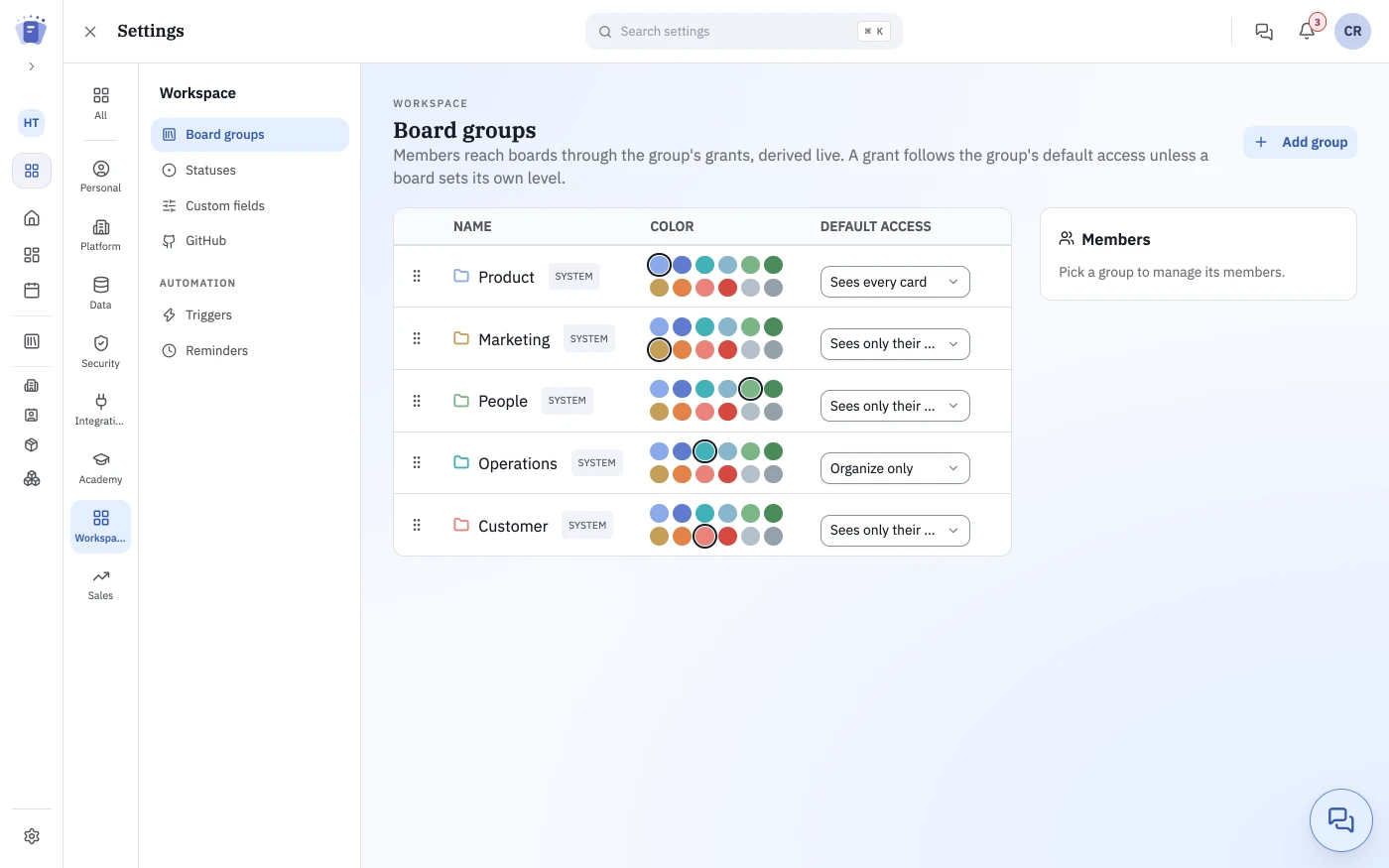
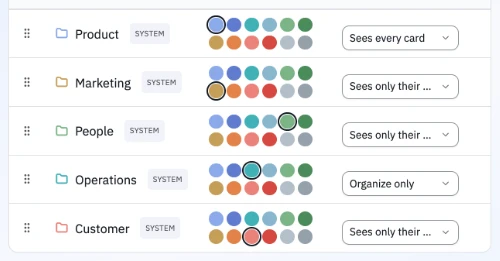
Each group has a colour and a default access that applies on its boards. Product sees every card, Marketing sees only their own, and Operations only organizes: its boards are grouped in the menu without giving access to anything. You create, rename and reorder groups in Settings › Workspace › Board groups.
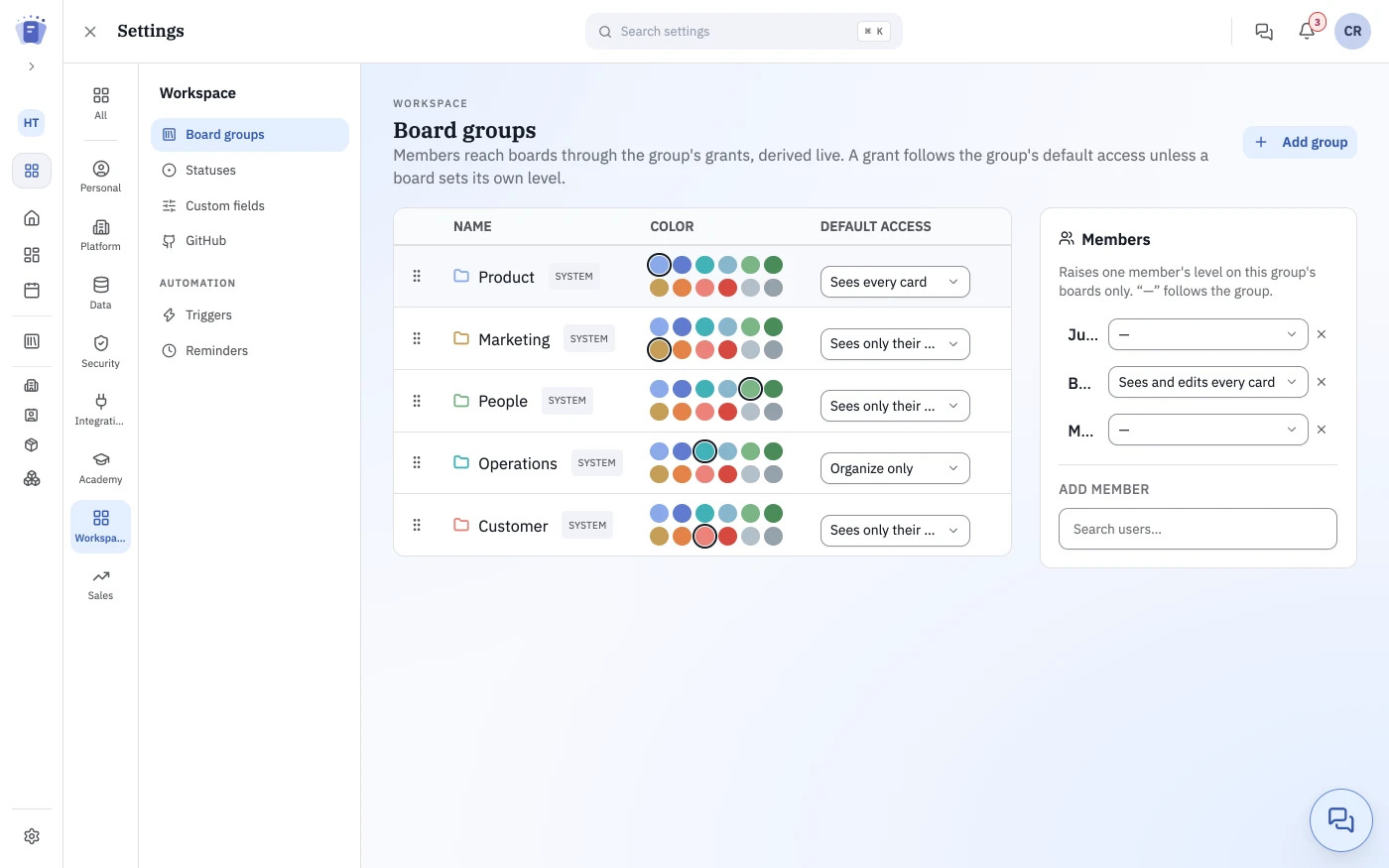
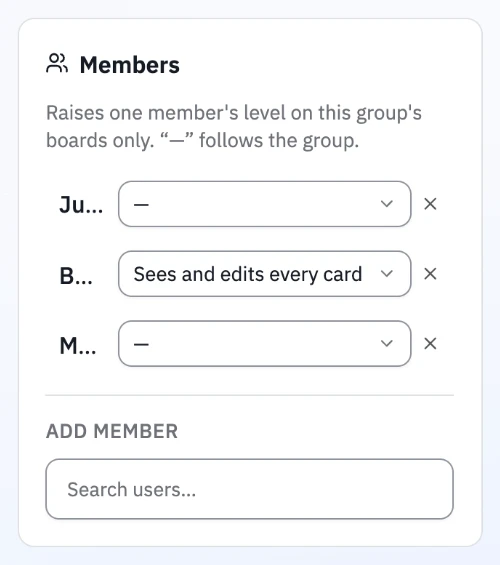
Click a group and its people appear. Anyone without a level of their own follows the group's access. If someone needs more, you raise that person's level on that group's boards only, like Beatriz, who edits every card in Product. It never goes down: the per-person adjustment only adds.
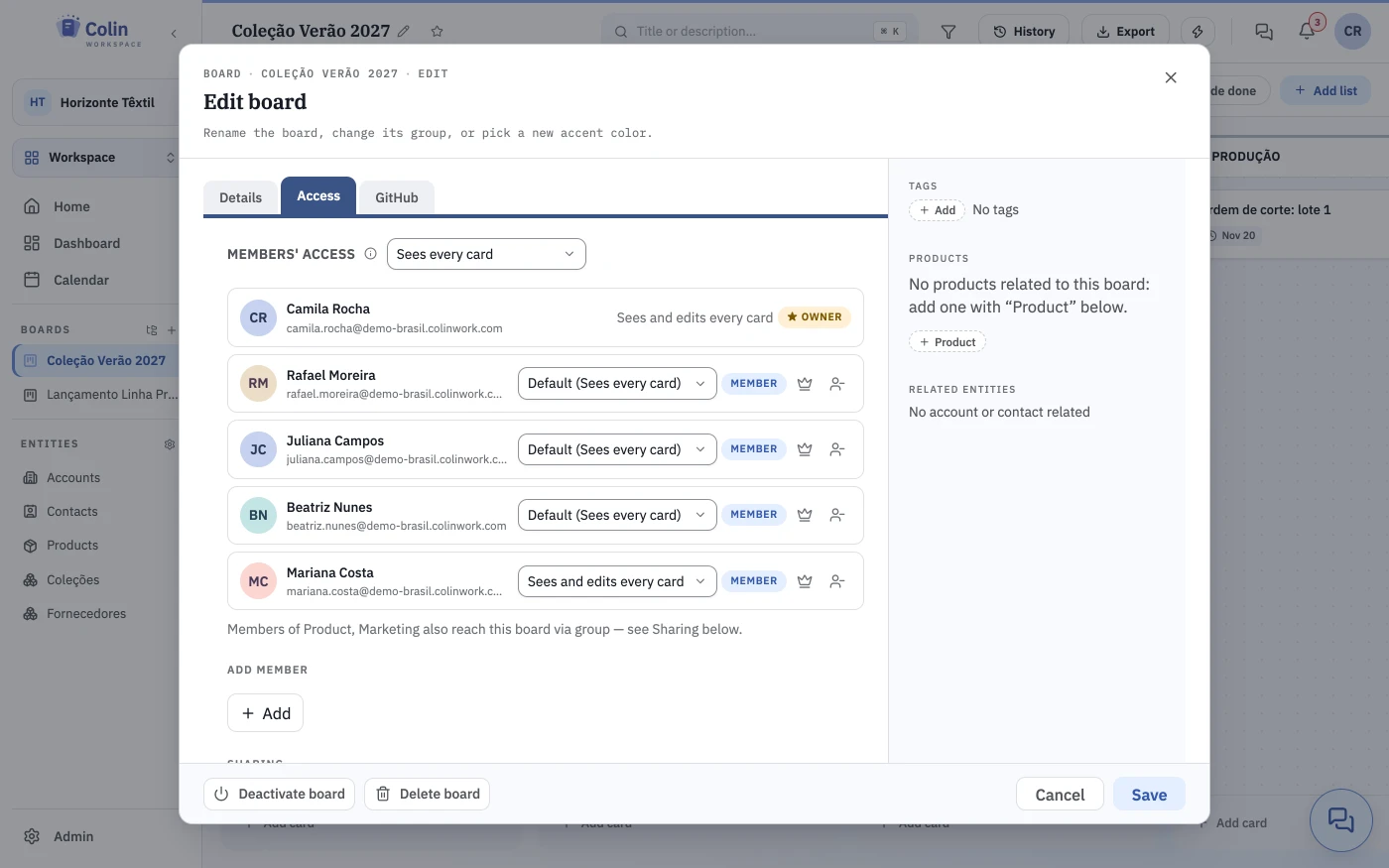
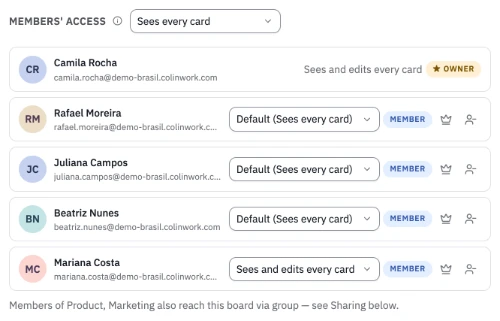
The board's Access tab holds the members' level, chosen by the board's owner, and each person with their own. Here the members of Coleção Verão 2027 see every card, Mariana edits them all, and Camila, the owner, always edits.
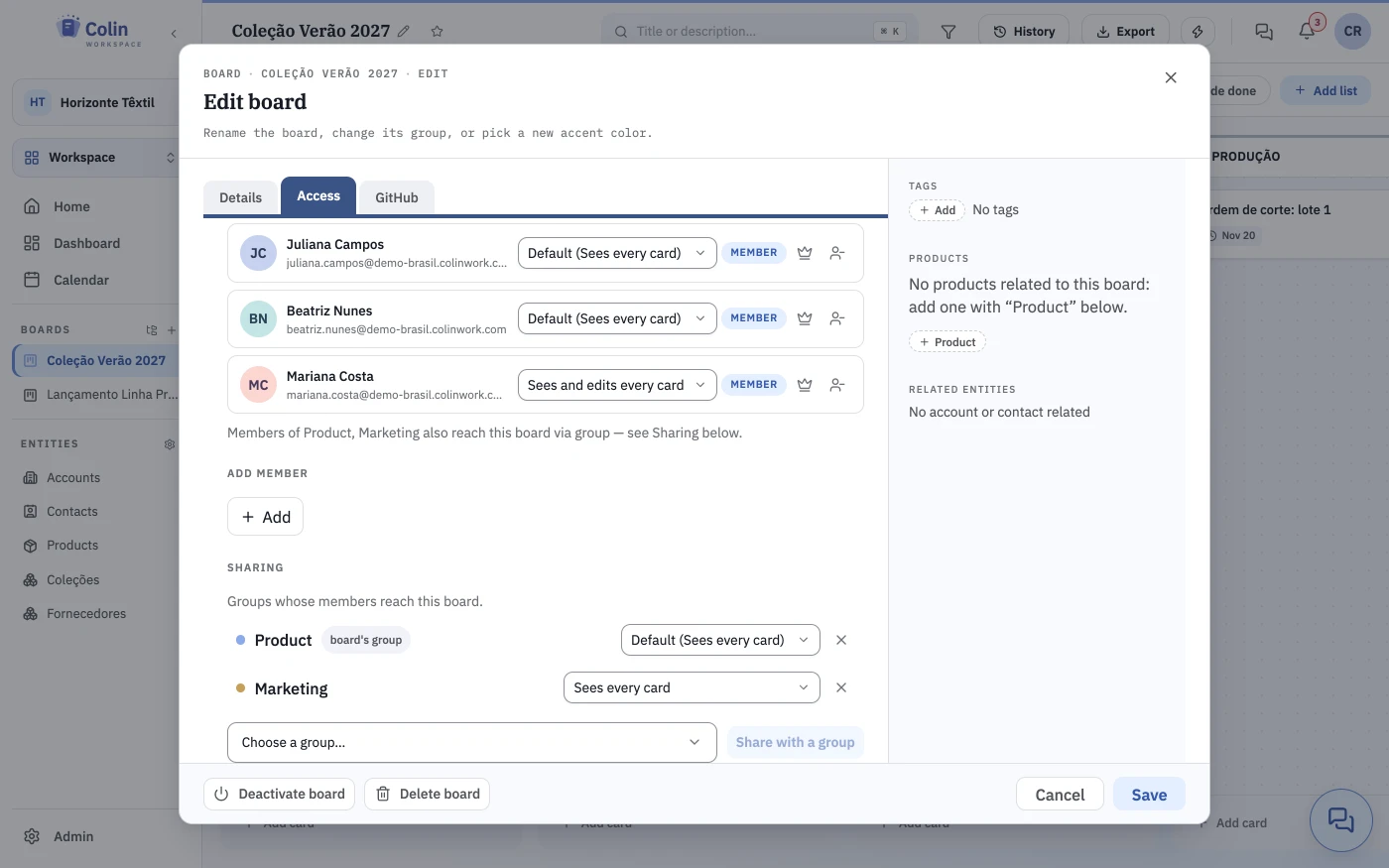
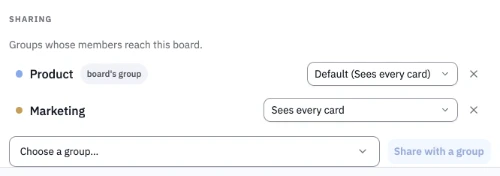
A board can be shared with other groups besides its own. Coleção Verão 2027 belongs to Product, and Marketing sees every card on it to get the launch ready, without inviting anyone. Whoever joins Marketing tomorrow sees it too.
When teams work on different boards and one needs a look at another's, groups handle it. A few examples:
An apparel maker keeps the collection board with Product and shows it to Marketing read-only, so the campaign lands with the pieces.
An agency creates a group per client and each team sees its account's jobs, without seeing the other boards.
A builder gives the site crew their own cards and the engineer in charge every card on the board.
A software team opens the bug board to support read-only, and only the developers touch the cards.
A services firm lets each agent see only their own requests, and the coordinator sees them all.
Administrators look after the groups and their people. A board's owner can also share it with another group.
Each person's access is worked out on the spot from every path that leads to the board: their groups, sharing and direct membership. The highest one wins. That's why taking someone out of a group removes the access it gave them at that moment, with no list to clean up afterwards.
Administrators see everything. Managers see the boards their groups reach. A card someone can't see answers as if it didn't exist, whether they try to open it or change it, and moving a card to another board needs edit access on the destination.
Every change is recorded: who created the group, who joined and left, who shared a board and at what level. The record can't be edited or deleted.
It comes with Colin Workspace and Colin Suite, at every user tier, with as many groups as you want. Colin Workspace starts at R$ 84 per user/month.
Boards with your process's lists and cards with an owner, a deadline, a checklist and the conversation.
The same board as a Gantt, a timeline and a list, and a dashboard of what's open and overdue.
Data in Brazil, a history nobody edits, masked personal data and the tools to answer an LGPD request.
On iPhone and Android, each person gets only the boards and cards they can see. Access is decided on the server, never on the device.
Three for anyone with access to a board: sees only their own cards, sees every card, and sees and edits every card. A group can also be set to Organize only, which groups the boards in the menu without giving access to them.
Yes. They add up the access of all their groups, and on each board the highest level any path gives them wins.
No. The per-person adjustment only raises the level. If someone should see less, take them out of the group or move them to a group with less access.
Administrators. A board's owner can share it with other groups and choose its members' access.
Yes. The members you add on the board still count, at the board's members' access or at their own level, if it's higher.
They lose the access that group gave them at once. The cards and the history stay where they are, they just stop showing up for that person.
No. The owner always sees and edits every card on the board.
Yes. The app gets from the server only what the person can see, so the phone follows the same rules as the computer.
Register a card, pick the apps and how many seats you want, and nothing is charged until the trial ends. Or we'll show you Colin with your company's boards and pipeline in 30 minutes.
 Chat on WhatsApp